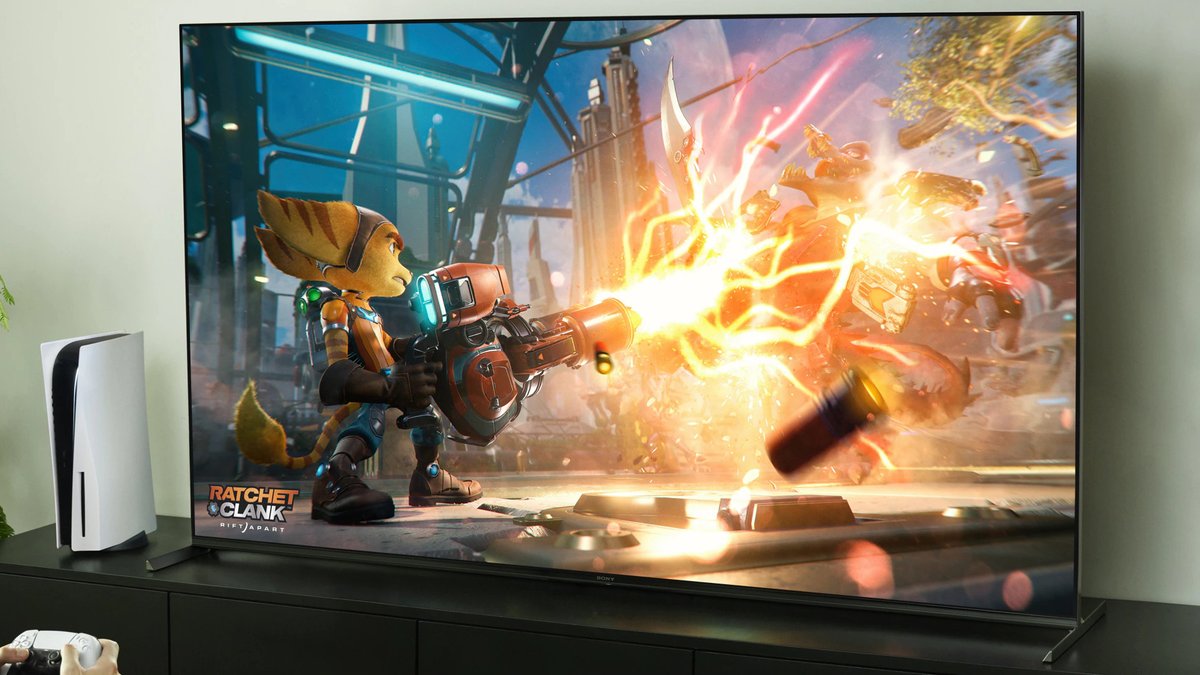
Journal · Reported · 11/19/2026 10:41
GTA 6: five TV settings to change on PS5 and Xbox Series
HDMI 2.1 port, Game mode, VRR: per Frandroid, five settings take minutes and get the most out of GTA 6 on PS5 and Xbox Series.
Sources frandroid.com
HDMI 2.1 port, Game mode, VRR: per Frandroid, five settings take minutes and get the most out of GTA 6 on PS5 and Xbox Series.
Sources frandroid.com
A new TV doesn't guarantee a good picture. By default it applies processing that delays the image and shifts colours, says Frandroid, which lists five settings to change in order, in the TV and console menus.
First: plug the console into an HDMI 2.1 port, often labelled "4K 120 Hz", "144 Hz", "165 Hz" or "Game". Frandroid says the "eARC" label isn't enough: it covers audio return, and on some sets that port can't carry 4K at 120 Hz. You also need an Ultra High Speed HDMI cable, as an older one can block 4K at 120 Hz.
Second: Game mode, called Game Optimizer on LG. It turns off part of the image processing and cuts latency, the delay between pressing a button and the on-screen reaction. If the TV supports ALLM it switches on its own, but Frandroid advises checking the menu.
Barely. Rockstar targets 30 fps on all consoles, PS5 Pro included, with no performance mode at launch. VRR syncs the panel to the game's real rate, but its range usually starts at 40 or 48 Hz. Leaving it on Automatic is harmless, Frandroid notes. Rockstar's Marc Chambers ruled out any 40 or 60 fps mode on Wednesday, citing the CPU; details in our 30 fps article.
Read also GTA 6: Neuralink shows a trial participant playing with thought alone
None of these settings adds frames, but they cut input lag and avoid skewed colours, which counts in a game with so much driving. Allow a few minutes before you start. For the rest of today's news, see the journal.
Sources frandroid.com
Reported Reported by the press, not confirmed by Rockstar
By Gabriel Janvier · GTAVIFRANCE newsroom
Next articleGTA 6 controls: how to change the sprint button, now on the left stick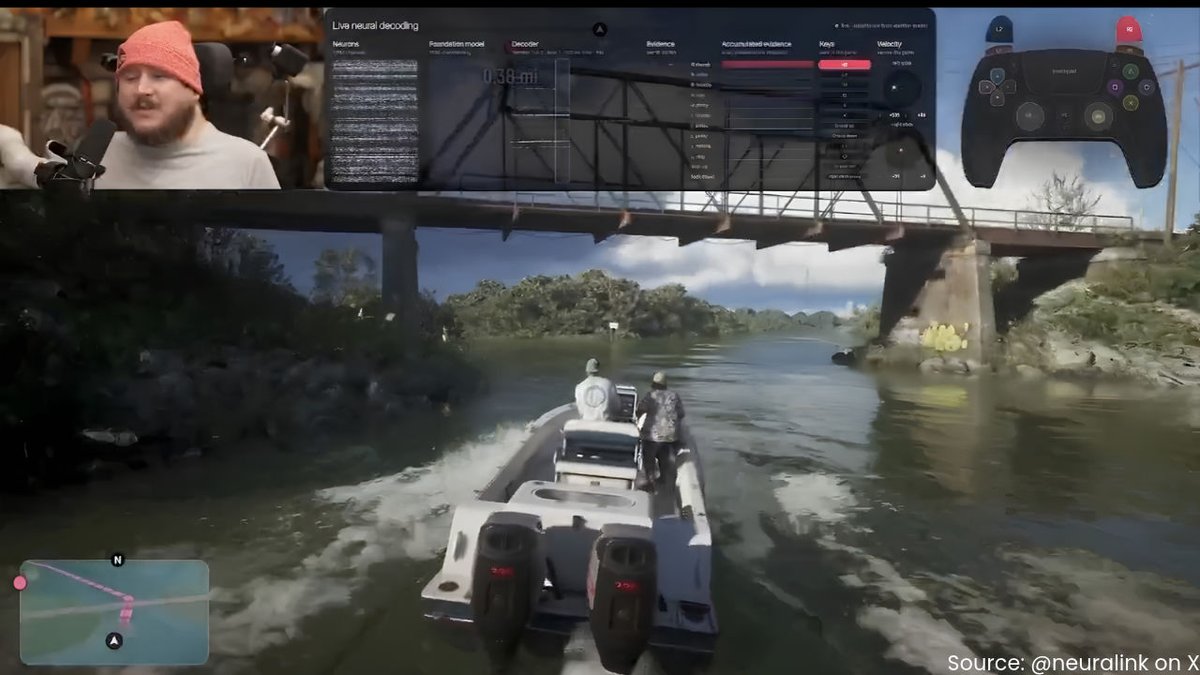 Reported 11/21/2026 11:02GTA 6: Neuralink shows a trial participant playing with thought alone
 Reported 11/20/2026 16:58GTA 6: over a million Xbox players got in early via New Zealand, Ampere says
 Reported 11/19/2026 05:21Can you share GTA 6 with a friend on PS5 and Xbox Series? What to know
 Reported 11/19/2026 01:08GTA 6 release in France: out since midnight on PS5 and Xbox Series